Finish and share
Export
Video, GIF, captions and step-by-step guides, with presets for YouTube, LinkedIn, Shorts and more.
Export a video
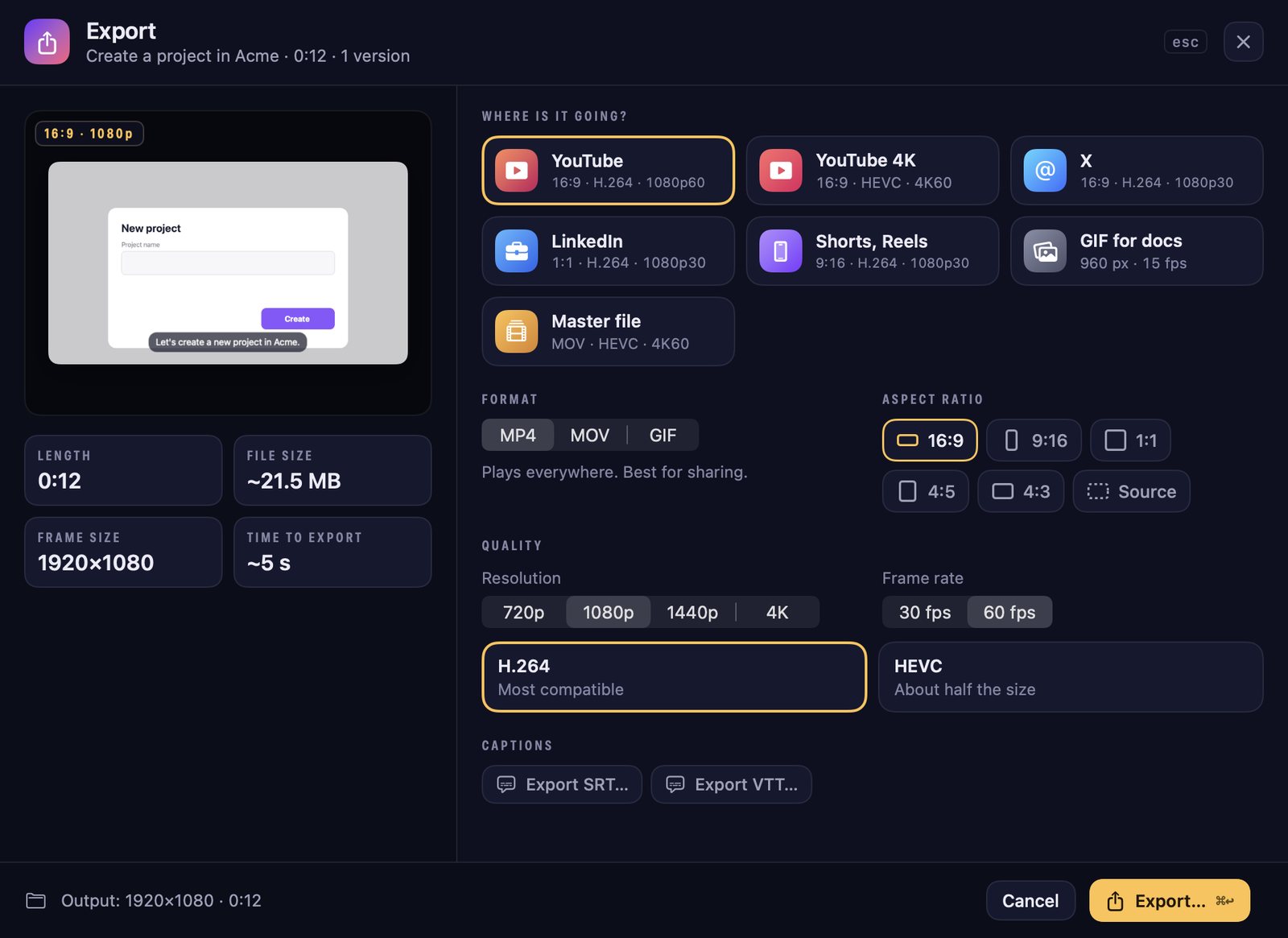
Press ⌘E or Export. Pick a destination and ZumCast sets the rest:
| Preset | Settings |
|---|---|
| YouTube | 16:9 · H.264 · 1080p60 |
| YouTube 4K | 16:9 · HEVC · 4K60 |
| X | 16:9 · H.264 · 1080p30 |
| 1:1 · H.264 · 1080p30 | |
| Shorts, Reels | 9:16 · H.264 · 1080p30 |
| GIF for docs | 960 px · 15 fps |
| Master file | MOV · HEVC · 4K60 |
Or choose yourself: MP4, MOV or GIF; 16:9, 9:16, 1:1, 4:5, 4:3 or the source shape; 720p, 1080p, 1440p or 4K; 30 or 60 fps; H.264 (plays everywhere) or HEVC (about half the size). The window shows the length, file size and how long it will take.
GIFs can be 480 to 1280 px wide at 10, 15 or 24 fps, up to 60 seconds. You can keep working while it exports.
Caption files
Press Export SRT… or Export VTT… to save captions, including translated languages, as separate files for YouTube and other players.
Export all
Export all (⇧⌘E) makes one file for every version in one go, named like “Title – 9:16.mp4”. Choose the resolution, codec and frame rate, optionally a GIF of each version, and whether to brand them with your default kit.
Step-by-step guides
Every click becomes a guide step with a picture. With Accessibility allowed, steps get real names like “Click Save”. Open Guide in the Studio to edit the words, reorder or hide steps, and blur a step.
- Export as a Markdown folder, an HTML page, a PDF or an interactive demo (an HTML page viewers click through).
- Copy as Markdown for Notion or GitHub, or Copy as rich text for Confluence or Google Docs.
Free export limits
| Export | With Basic (free) |
|---|---|
| Video | The first half of the video, up to 30 s, up to 1080p, with a “Made with ZumCast” mark and a short end card |
| GIF | Up to 10 s, with a mark |
| Guides and demos | The first 3 steps |
| Caption files, Export all | Not included |
Pro exports are full length up to 4K at 60 fps with no mark. See Free vs Pro.
Where exports go
You choose where to save each export. ZumCast also keeps a copy in the project’s exports folder.